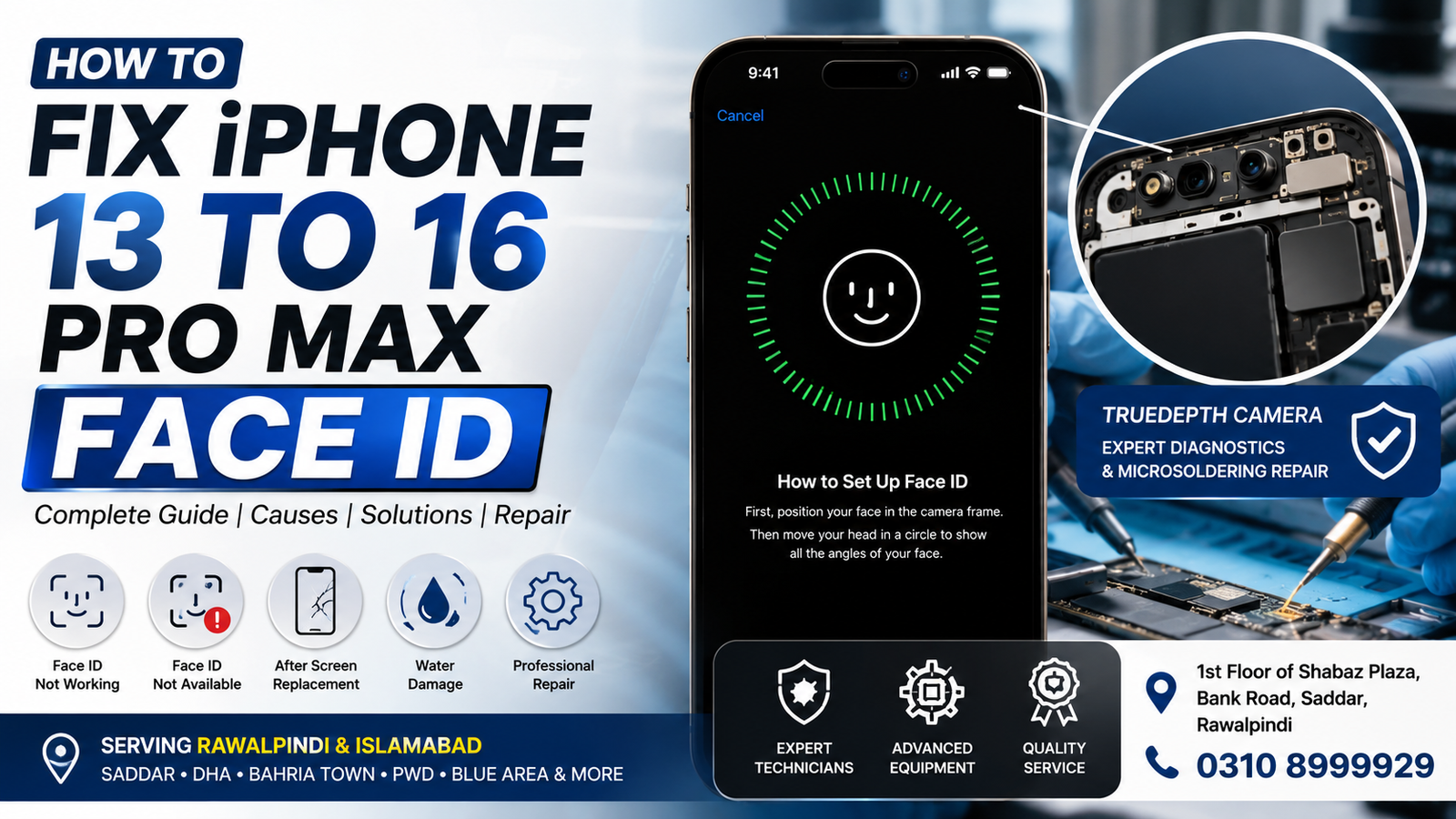
iPhone 13 to 16 Pro Max models have one of the most important security features on modern iPhones. If Pro Max Face ID stops working on an iPhone 13, iPhone 14, iPhone 15, iPhone 16, or any Pro or Pro Max model, it can affect device unlocking, app authentication, password access, and Apple Pay.
This guide explains the common causes of Face ID problems, what you can safely try at home, and when professional microsoldering or TrueDepth camera repair may be required in Rawalpindi and Islamabad.
Quick Answer: How Do You Fix Pro Max Face ID on an iPhone?
To fix Pro Max Face ID on an iPhone, first restart the device, check for iOS updates, clean the TrueDepth camera area, and reset Face ID. If the “Face ID is not available” message appears or “Face ID stopped working” after a screen replacement, water damage, or a drop, the problem may involve the TrueDepth camera, flood illuminator, dot projector, front camera assembly, flex cable, or motherboard.
Modern iPhone Face ID components are sensitive and may require professional diagnostics and microsoldering repair.
Which iPhones Can Have Pro Max Face ID Problems?
Pro Max Face ID issues can occur on:
- iPhone 13
- iPhone 13 mini
- iPhone 13 Pro
- iPhone 13 Pro Max
- iPhone 14
- iPhone 14 Plus
- iPhone 14 Pro
- iPhone 14 Pro Max
- iPhone 15
- iPhone 15 Plus
- iPhone 15 Pro
- iPhone 15 Pro Max
- iPhone 16
- iPhone 16 Plus
- iPhone 16 Pro
- iPhone 16 Pro Max
Although the symptoms may look similar, the internal design and repair requirements can vary between models.
Common Signs That Your iPhone Pro Max Face ID Is Not Working
You may need Face ID diagnostics if you experience:
- “Face ID Is Not Available” message
- Unable to activate Pro Max Face ID
- Face ID suddenly stopped working
- Face ID not working after screen replacement
- Face ID not working after a drop
- Face ID failure after water or liquid damage
- Face ID works sometimes but fails frequently
- Face ID cannot complete the face setup process
- Front camera works, but Face ID does not
- Portrait mode or other front camera functions are affected
These symptoms can help determine whether the issue is software-related or hardware-related.
1. Restart Your iPhone
A temporary software problem can sometimes interfere with Face ID.
Restart your iPhone and test Face ID again. If it starts working normally, the issue may have been related to a temporary system error.
If Face ID continues to fail after restarting, continue with the following steps.
2. Check Your iPhone for an iOS Update
An outdated or corrupted software installation can occasionally cause problems with system features.
Go to:
Settings > General > Software Update
Install any available stable iOS update and test Face ID again.
Before updating, make sure your important data is backed up.
3. Clean the TrueDepth Camera Area
The TrueDepth camera system is located near the top of the display. Dirt, dust, moisture, a damaged screen protector, or an incorrectly fitted case can interfere with the sensors.
Carefully clean the top area of the screen with a soft, dry microfiber cloth.
Remove any screen protector or case that covers or interferes with the sensor area, then test Face ID again.
4. Check Your Pro Max Face ID Settings
Open:
Settings > Face ID & Passcode
Make sure Face ID is enabled for the features you want to use.
You can also check whether Face ID can be set up again.
If the phone displays an error during Face ID, this can indicate a deeper software or hardware issue.
5. Reset Pro Max Face ID and Set It Up Again
If Face ID was previously working but has become unreliable, resetting it may help.
Go to:
Settings > Face ID & Passcode > Reset Face ID
Then choose Set Up Face ID and follow the instructions.
If the setup process cannot be completed, professional diagnostics may be necessary.
Why Did My Face ID Stop Working?
Face ID can stop working for several reasons.
Physical Damage
Dropping an iPhone can damage the delicate components inside the TrueDepth camera system. Even when the screen appears normal, internal flex cables or sensors may be damaged.
Water or Liquid Damage
Moisture can cause corrosion or electrical damage to front sensor components or the motherboard.
Face ID may stop working immediately after exposure to liquid or gradually fail later as corrosion develops.
Previous Screen Repair
If Face ID stopped working after a display replacement, the issue may be related to the original sensor assembly, flex cable damage, incorrect installation, or damage during the repair process.
The TrueDepth system contains important components that require careful handling.
Damaged Front Sensor Flex Cable
A damaged flex cable can cause Face ID failure, even if the front camera still appears to work normally.
Flood Illuminator or Dot Projector Problems
The Face ID system uses specialized components to identify and authenticate your Face. Problems with these components may require advanced diagnostics and microsoldering-level repair.
Motherboard or Logic Board Fault
In some cases, the Pro Max Face ID components function correctly, but the communication or power circuits on the motherboard are damaged.
This type of issue requires specialist-level diagnostics rather than a standard parts replacement.
Can Face ID Be Repaired After Water Damage?
Yes, in some cases Face ID can potentially be repaired after liquid damage, depending on which components are affected and the extent of corrosion.
It is important not to repeatedly charge or continue using a heavily water-damaged phone, as electrical damage can become worse.
A professional inspection can identify corrosion, damaged components, or motherboard faults that affect the TrueDepth system.
Can Face ID Be Fixed After a Screen Replacement?
Yes, but the solution depends on what happened during the repair.
If the original Pro Max Face ID-related components were damaged during screen removal or installation, Face ID may stop functioning. Because these components are sensitive and some are paired with the device, simply replacing parts without proper diagnostics may not restore normal Face ID functionality.
A specialist inspection can help determine whether the problem involves the sensor assembly, flex cable, display installation, or another hardware fault.
Can You Replace the Pro Max Face ID Camera?
Face ID is not always repaired in the same way as a standard front camera.
The TrueDepth system includes multiple components that work together. Depending on the iPhone model and the damaged component, repair may require preserving original components, transferring parts correctly, or performing board-level repair.
For this reason, an accurate diagnosis should be completed before attempting unnecessary replacement.
Professional Face ID Repair in Rawalpindi and Islamabad
If basic troubleshooting does not solve the problem, professional diagnostics may be required for iPhone Pro Max Face ID issues in Rawalpindi and Islamabad.
Specialist repair may involve diagnosing:
- TrueDepth camera faults
- Dot projector problems
- Flood illuminator issues
- Front sensor flex damage
- Liquid damage and corrosion
- Screen replacement-related Face ID failure
- Motherboard and logic board faults
- Power or communication line problems
- Microsoldering-related hardware faults
Advanced repairs should be performed carefully, as improper handling can cause additional damage to sensitive components.
iPhone Pro Max Face ID Repair for Rawalpindi, Islamabad, and Nearby Areas
Professional diagnostic and repair services are available for customers from:
- Saddar Rawalpindi
- Rawalpindi
- Islamabad
- Blue Area
- F-6
- F-7
- F-8
- G-6
- G-7
- G-8
- G-9
- G-10
- G-11
- I-8
- I-9
- Bahria Town
- DHA
- PWD
- Satellite Town
- Chaklala
- Murree Road
- Nearby areas of Rawalpindi and Islamabad
The exact repair method depends on the iPhone model, the error message, previous repair history, and the condition of the original Face ID components.
When Should You Get Professional Face ID Diagnostics?
You should consider professional diagnostics if:
- Face ID stopped working after dropping your iPhone
- Face ID failed after water damage
- Your iPhone displays “Face ID Is Not Available”
- Face ID stopped working after a screen repair
- You cannot complete Face ID setup
- Resetting Face ID does not solve the problem
- Your front camera or proximity sensors are also malfunctioning
- Your iPhone has motherboard damage
- The problem continues after an iOS update
A proper diagnosis can help identify the actual fault before unnecessary parts are replaced.
Face ID Repair Process
A professional repair process generally begins by examining the device’s symptoms and testing the relevant functions.
The inspection may include:
- Checking the Pro Max Face ID error and device history.
- Testing the front camera and related sensors.
- Inspecting for physical or liquid damage.
- Checking previous screen or front assembly repairs.
- Diagnosing the TrueDepth camera system.
- Inspecting flex cables and related components.
- Performing advanced hardware or microsoldering repair if appropriate.
- Testing Pro Max Face ID functionality after repair.
The repair time and solution depend on the specific fault.
Important: Avoid Unnecessary Face ID Part Replacement
Do not assume that every Pro Max Face ID problem requires replacing the front camera or sensor assembly.
Some Face ID components are closely integrated with the device, and incorrect replacement or repair can result in additional functionality problems. Accurate diagnostics are especially important for iPhone 13, iPhone 14, iPhone 15, and iPhone 16 series devices.
If your Face ID stopped working after a previous repair, explain the repair history during diagnostics.
FAQs
Can Face ID on an iPhone 13 be repaired?
In many cases, yes. The possibility of repair depends on the cause of the fault, such as physical damage, liquid damage, flex cable problems, TrueDepth system issues, or motherboard faults.
Why is Face ID not working after my iPhone screen replacement?
The original sensor assembly or related components may have been damaged, disconnected, or incorrectly handled during the screen repair. Professional diagnostics can identify the cause.
Can water damage permanently deactivate Face ID?
Yes. Water can damage sensitive components or cause corrosion. However, whether the issue is repairable depends on the extent and location of the damage.
My front camera works, but Face ID does not. Why?
The standard front camera and the complete Face ID system are not the same thing. Other TrueDepth components may be damaged even when the front camera continues working.
How do I fix “Face ID Is Not Available”?
Restart the iPhone, update iOS, check the TrueDepth area, and reset Face ID. If the error remains, the device may require professional hardware diagnostics.
Can an iPhone 16 Pro Max Face ID problem be fixed?
The repair options depend on the exact fault. Software issues may be resolved through troubleshooting, while hardware faults involving the TrueDepth system or motherboard may require specialist repair.
Do I need to erase my iPhone before Face ID repair?
Not always, but backing up important data before any hardware repair is recommended whenever possible.
Contact for iPhone Face ID Diagnostics and Repair
If your iPhone 13, iPhone 14, iPhone 15, or iPhone 16 Pro Max Face ID is not working, you can arrange professional diagnostics for your device in Rawalpindi, Islamabad, and surrounding areas.
Address: 1st Floor of Shabaz Plaza, Bank Road, Saddar, Rawalpindi
Office Contact: 0310 8999929
Whether the problem occurred after a drop, liquid damage, a screen replacement, or a motherboard fault, proper diagnostics can help identify the actual cause and determine the most suitable repair.